How to deploy Private AI foundations for vcf 9
Posted: XXXXX
We are currently setting up Private AI Foundation (PAIF) in our VCF 9 environment. This guide walks through how we deployed PAIF in our setup.
VMware has already published a solid, step-by-step guide for deploying PAIF through vCenter, which we used as the foundation for our implementation.
To enable the guided deployment in the vSphere UI, you must first have a valid license. Start by adding the VMware Private AI Foundation with NVIDIA license in License Management.
Next, navigate to VCF Operations → License Management → Licenses → Version 9+ → vCenter System, and assign the PAIF-N add-on license.
Once the license is assigned, the guided setup becomes available in the vSphere UI.
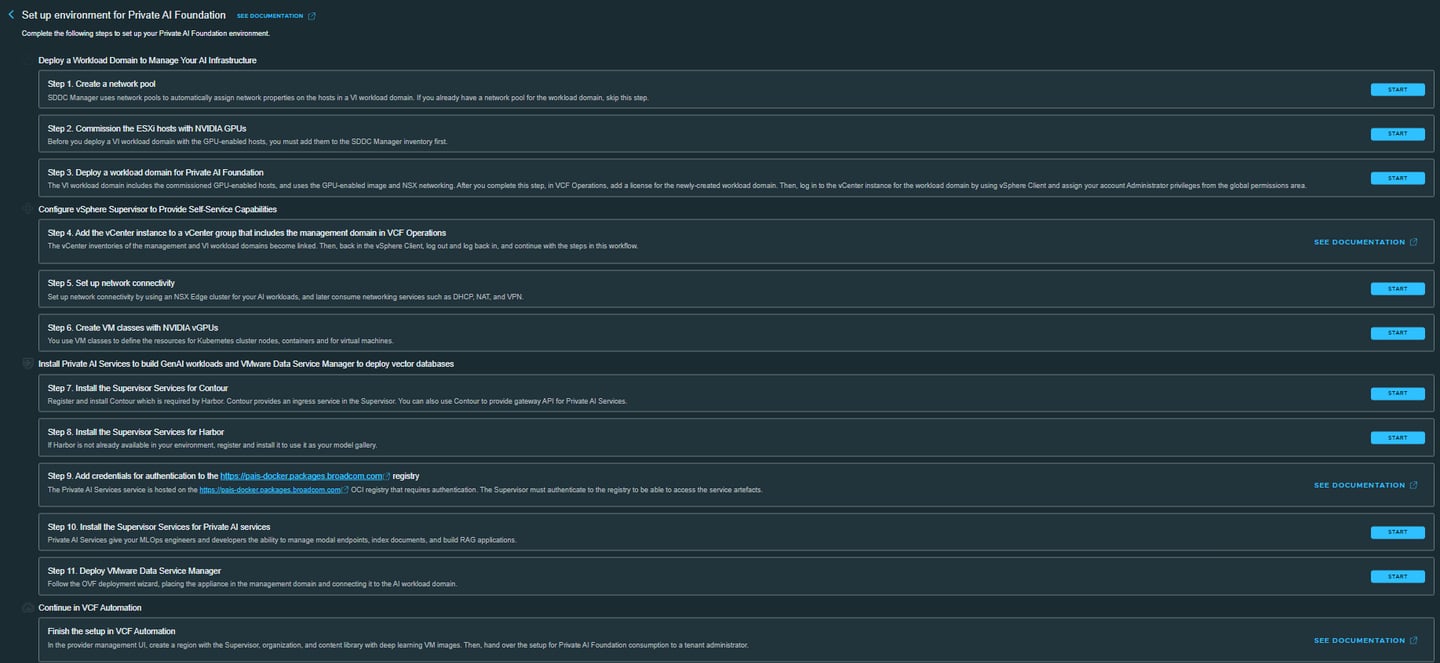
As shown in the guide above, these are the steps we need to complete. The process starts with creating a network pool.
STEP 1: Network Pool
After clicking Start in the setup environment, the guided PAIF deployment workflow is displayed.
Below is an overview of the deployment steps:
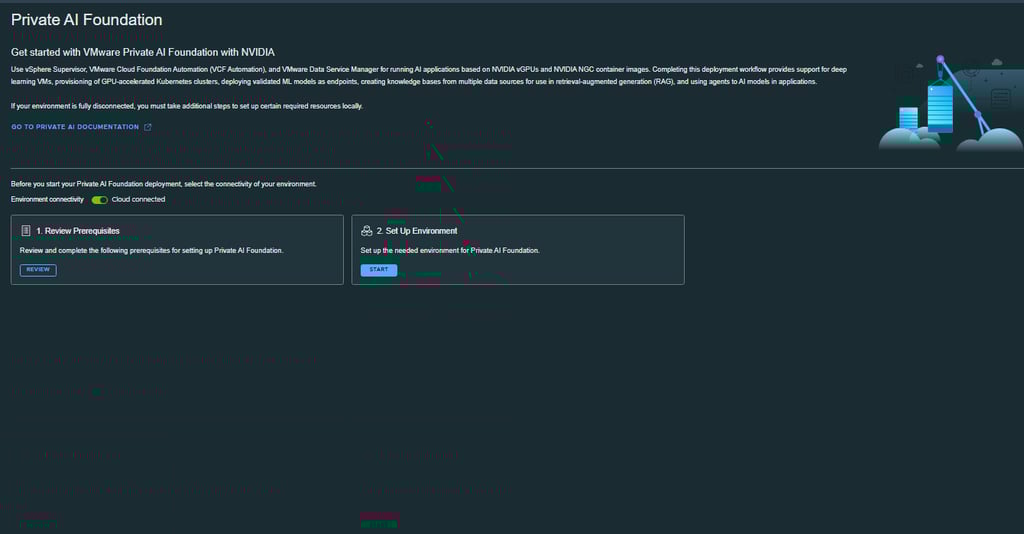
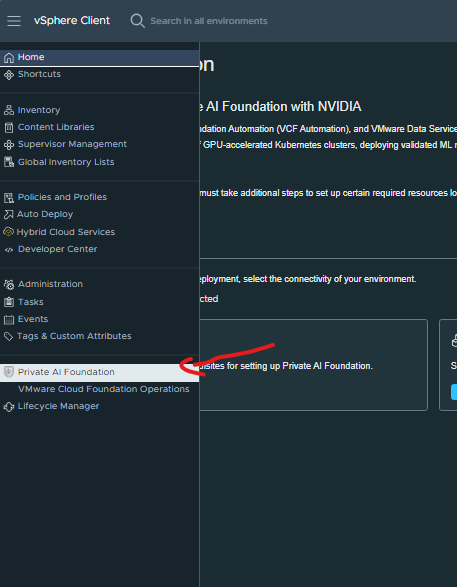
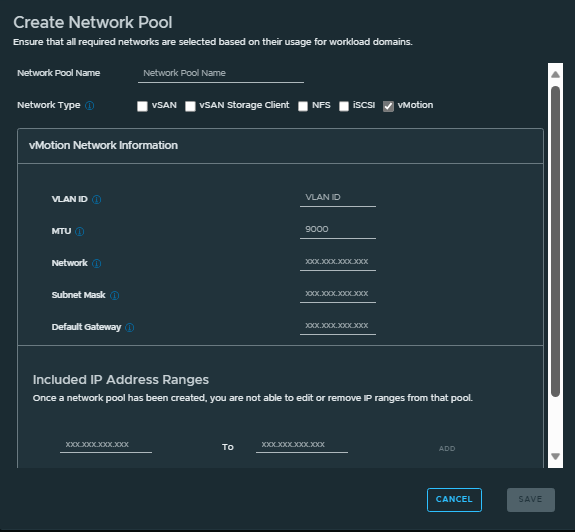
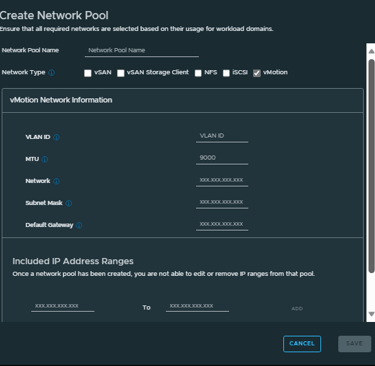
First, we need to create network pools for vMotion and vSAN. Define an IP address range that will be used for vMotion and vSAN traffic.
STEP 2: Commission the ESXi hosts with NVIDIA GPUs
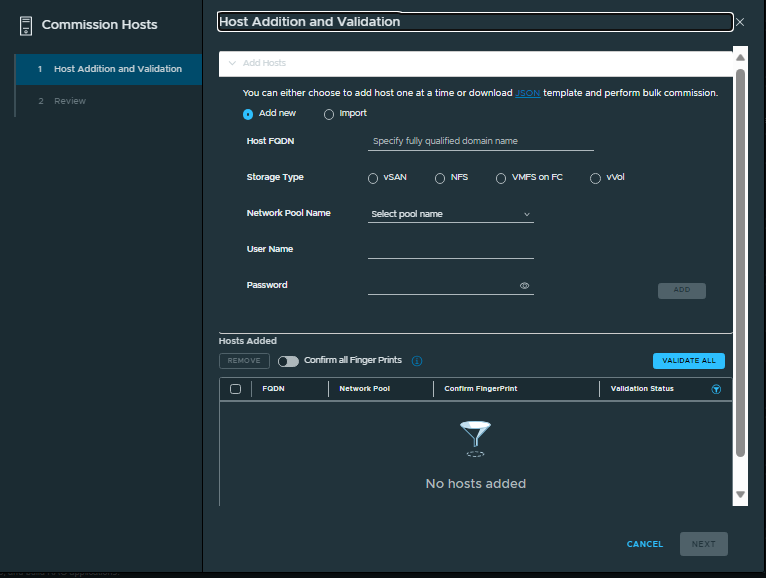
Next, commission the hosts that will be used in the workload domain (WLD). Provide the FQDN, select the storage type, and assign the network pools created in the previous step.
Enter the required username and password, run the validation, and once it completes successfully, this step is finished.
STEP 3: Deploy a workload domain for Private AI Foundation
General information: Provide the name of the workload domain and define which SSO domain it should be associated with.
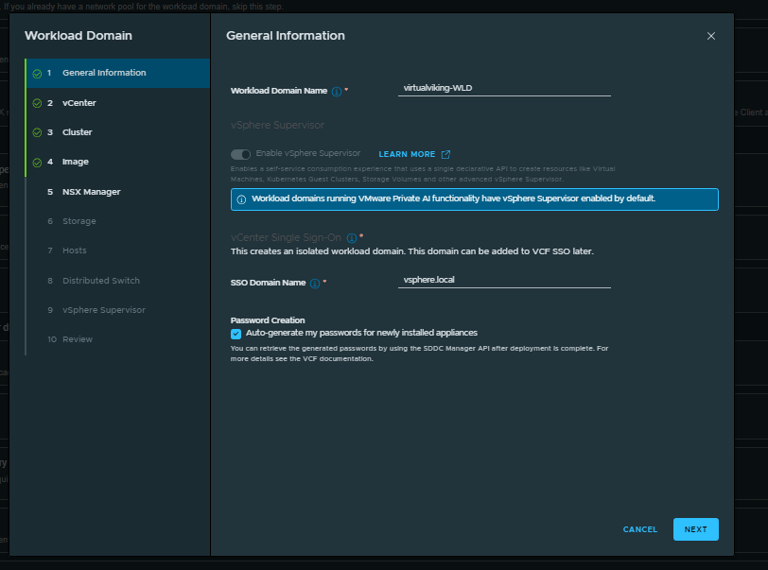
vCenter: Provide the FQDN of the vCenter. You can view the IP configuration by clicking the eye icon to the right of the input field.
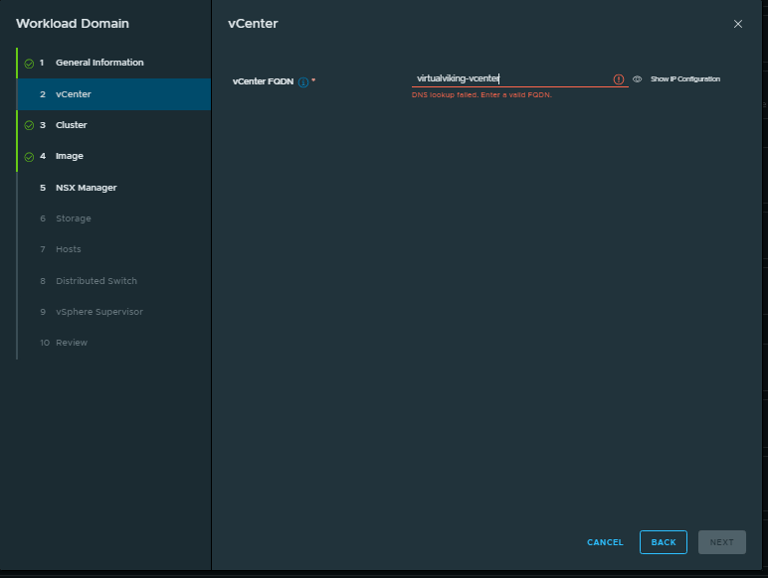
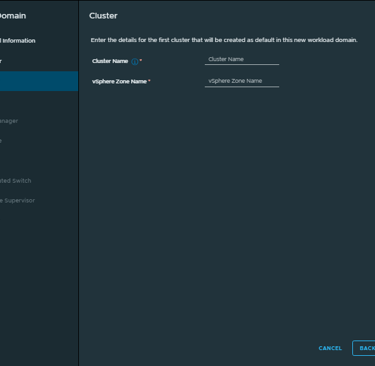
Cluster: Provide the FQDN of the vCenter. You can view the IP configuration by clicking the eye icon to the right of the input field.

VirtualViking
Plundering the Old Ways, Automating the New!
Tech
© 2024. All rights reserved.