Patching VMware Cloud Foundation from 9.0.1 to 9.0.2
With the release of VMware Cloud Foundation 9.0.2, Broadcom introduces fixes and stability improvements on top of 9.0.1. In this post, I’ll cover the patching process from VCF 9.0.1 to 9.0.2, highlighting key prerequisites, the upgrade flow, and a few important things to watch out for to ensure a smooth update.
POSTED 15.02.2026
VCF Operations is the central lifecycle management engine for both the Management Domain and core infrastructure components in VMware Cloud Foundation. In this upgrade, I’ll be using the online depot, allowing VCF Operations to automatically download, stage, and apply the required patches directly from Broadcom.
Management components (vcf ops, vcf logs, vcf automation, identity broker, vcf networks) are maintained at the fleet level, providing consistent lifecycle management across all VCF instances.
Core infrastructure components (vCenter, esx, nsx) are managed per instance, allowing granular control within each workload domain.
Update order in VMware Cloud Foundation
When updating a VMware Cloud Foundation environment to a maintenance release (for example from 9.0.0.0 to 9.0.1.0 or 9.0.2.0), components must be upgraded in a defined order to ensure platform stability.
The process is split into fleet-level management components and instance-level core components.
1. Update fleet-level management components (first)
Start by upgrading the components that operate at the fleet level:
VCF Operations Fleet Management Appliance
VCF Operations
Remaining fleet components, in any preferred order:
VCF Operations for Logs
VCF Automation
VCF Identity Broker
VCF Operations for Networks
2. Update core infrastructure components (per instance)
Once all fleet-level components are updated, proceed with the core components per VCF instance, in the following order:
SDDC Manager
NSX
vCenter Server
ESXi hosts
vSAN
This update sequence is required to maintain compatibility between platform services and infrastructure components during the lifecycle process.
Source: Broadcom TechDocs (Depot configuration & lifecycle management for VCF 9.x)
VCF Fleet
As mentioned earlier, the patching process starts with the VCF Fleet Management appliance. The first step is to download the required patch binaries.
Note: Patch binaries for VCF 9.0.2 are not available until the Fleet Management appliance itself has been upgraded.
To download the binaries, log in to VCF Operations and navigate to:
Fleet Management → Lifecycle → VCF Management → Binary Management → Patch Binaries
From there, download the Fleet Management version 9.0.2.0 package.
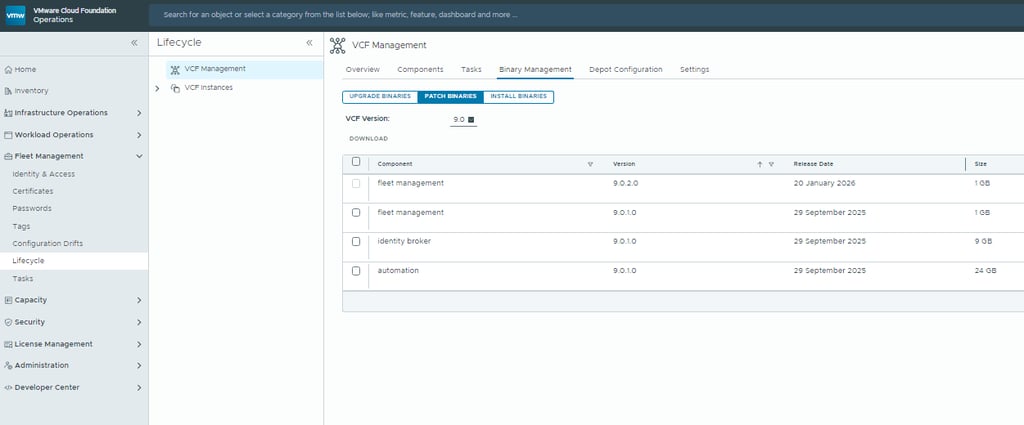
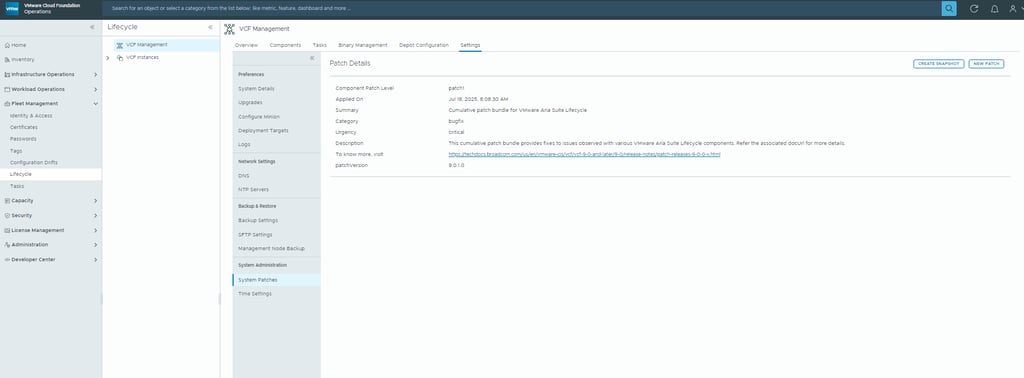
Once the patch binary has been downloaded, you can proceed with upgrading the Fleet Management appliance.
Navigate to Fleet Management → Lifecycle → Settings → Upgrades to start the upgrade process.
Before initiating the upgrade, make sure to take a snapshot of the Fleet Management appliance to ensure a safe rollback if needed.
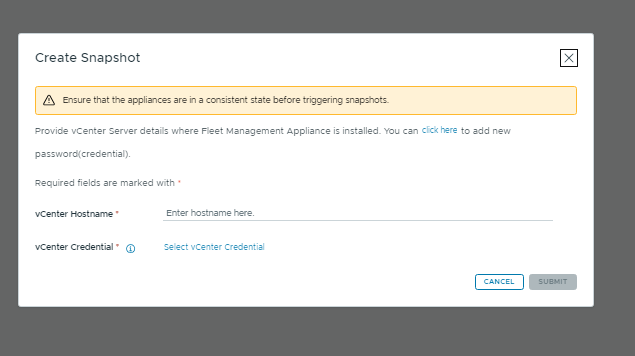
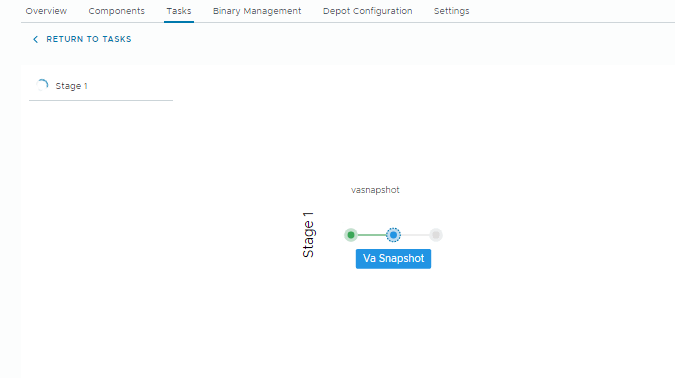
Provide the vCenter credentials, and the snapshot will be taken automatically.
Then click New Patch and select the binary you just downloaded.
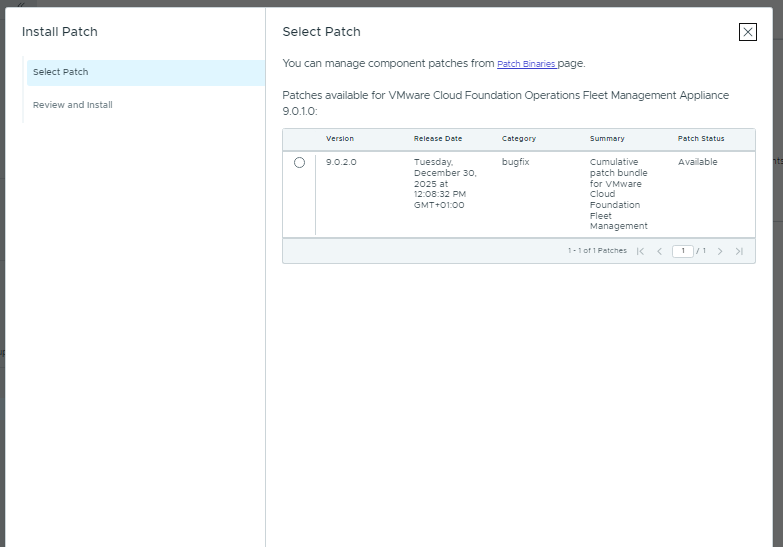
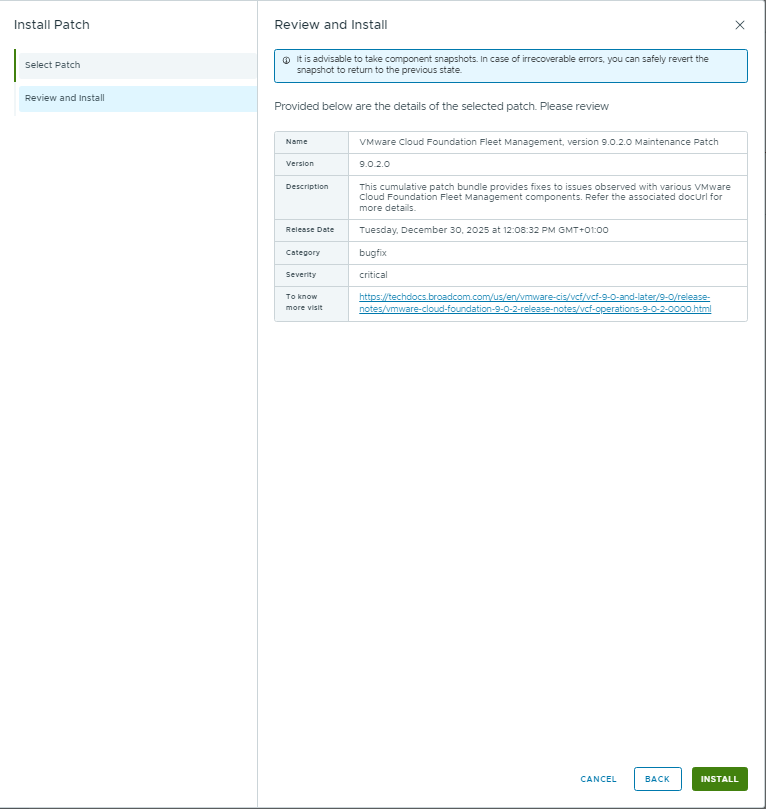
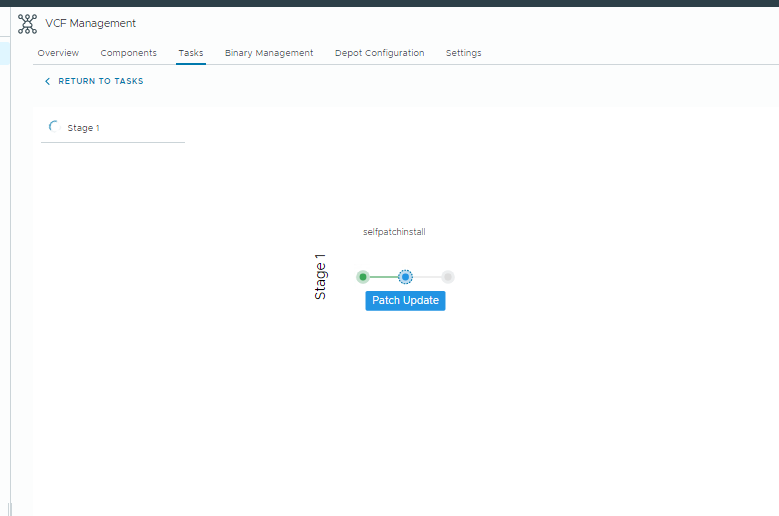
You can monitor the process under Tasks.
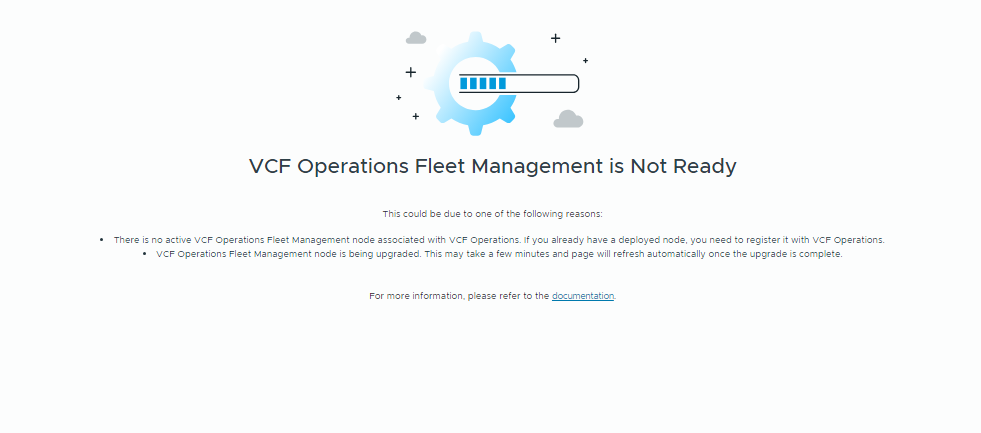
The Fleet Management appliance will be unavailable during the patching process.
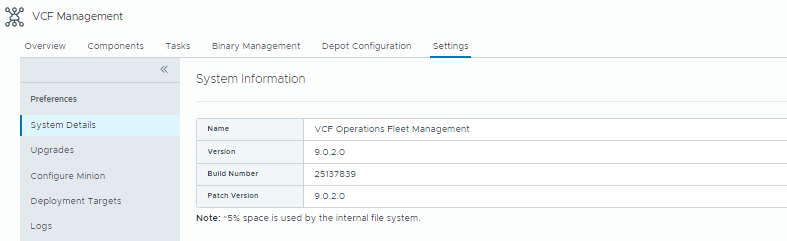
Once the patching process is complete, you can verify the version by navigating to
Fleet Management → Lifecycle → Settings → System Details.
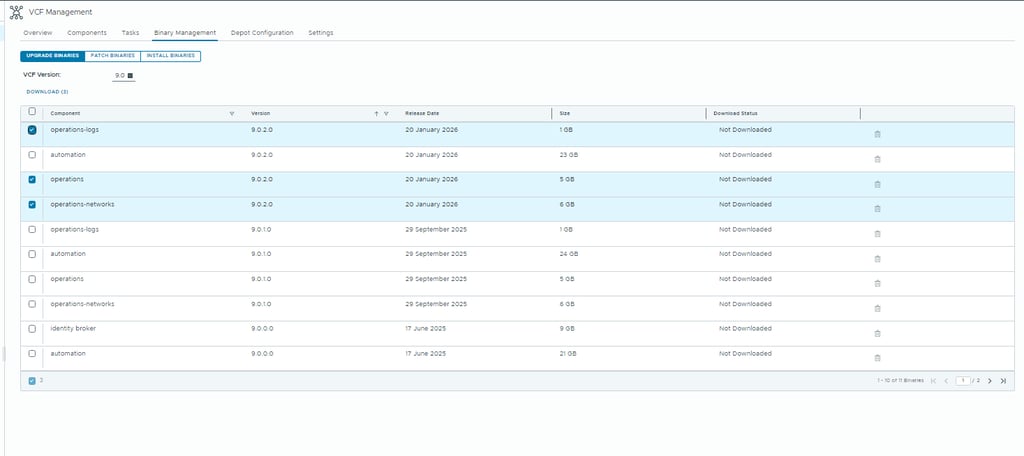
With the Fleet Management appliance updated, you can proceed to download the remaining binaries.
You’ll find VCF Operations, VCF Operations for Logs, and VCF Operations for Networks under Upgrade Binaries, while the remaining products are listed under Patch Binaries.
Start downloading the required binaries for the next stages of the upgrade.
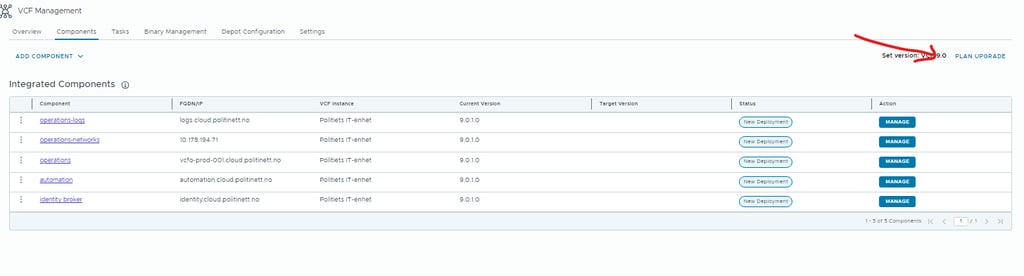
Once all required binaries have been downloaded, you can begin the upgrade process.
Navigate to the Components view and click Plan Upgrade to get started.
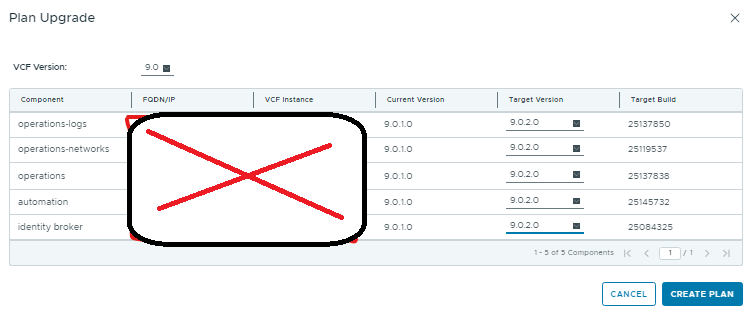
Choose the 9.0.2.0 verison for all the products you want to patch and press create plan.
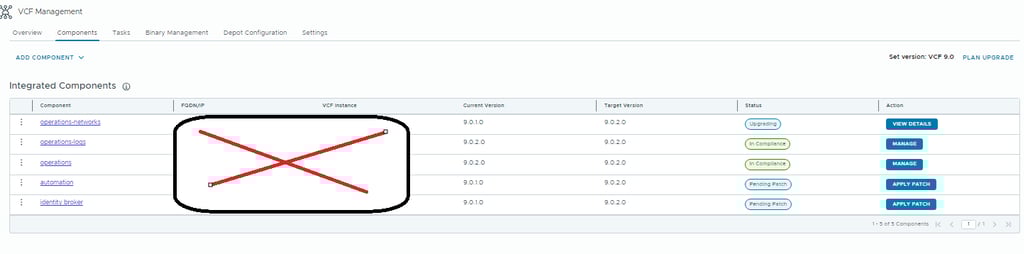
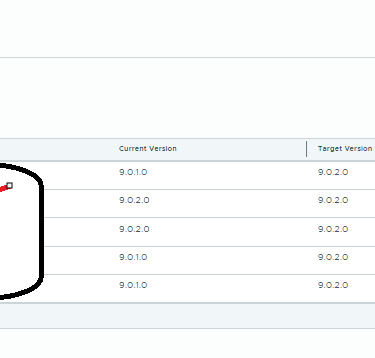
Once the upgrade plan has been created, it will appear in both the Components and Overview views.
From here, you can start the patching process, beginning with VCF Operations.
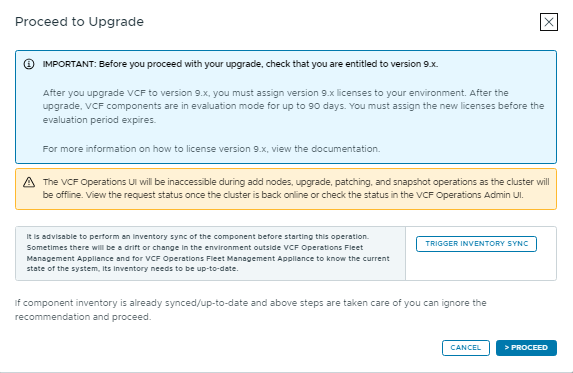
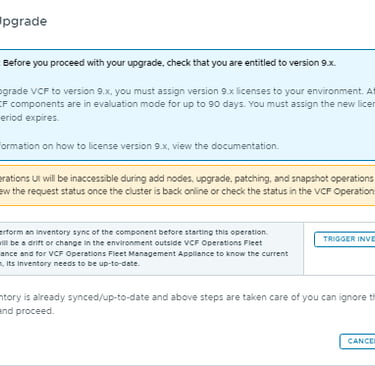
Click Upgrade VCF Operations. A details pane will open with important information that should be reviewed carefully. As a best practice, make sure to run Trigger Inventory Sync before starting the Upgrade.
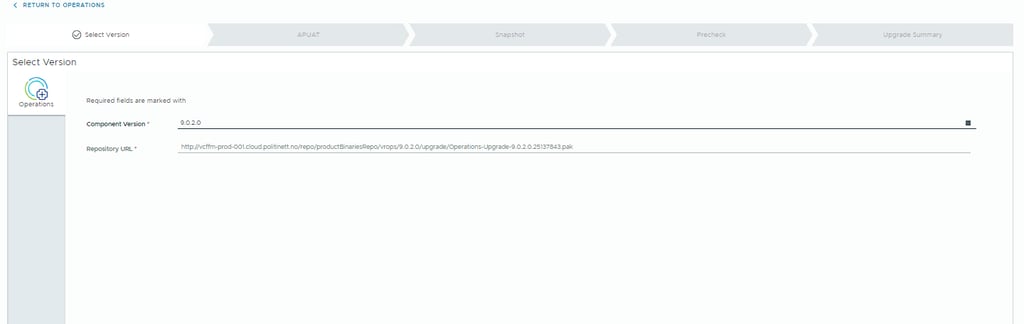
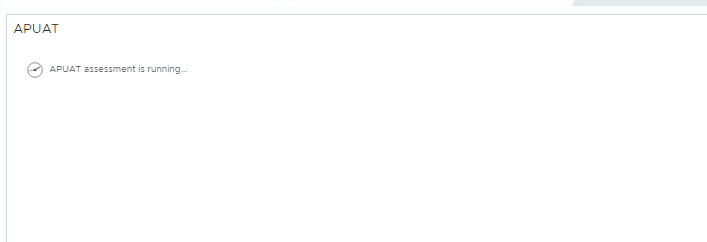

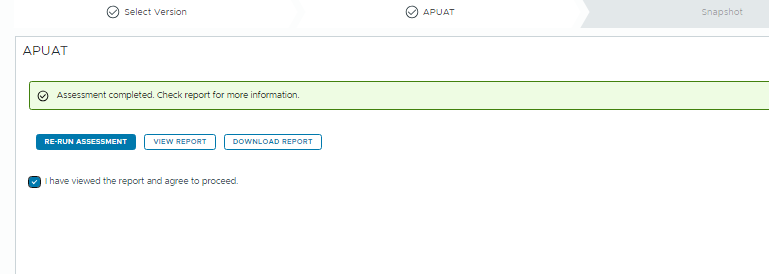
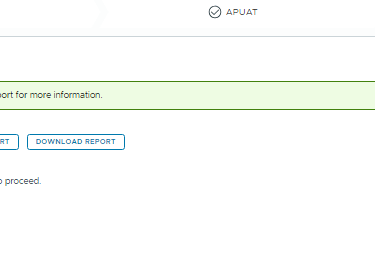
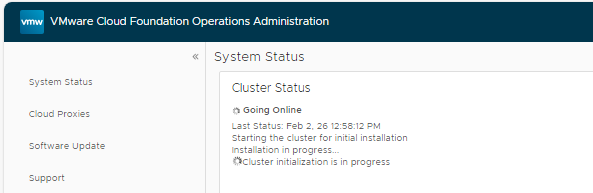
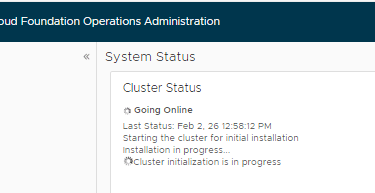
When you reach the APUAT stage which is an integrated pre-check framework that verifies your environment is ready for an upgrade or patch, be prepared to wait. This step runs a comprehensive set of validations before the upgrade begins and can take some time. In my case, it took approximately 30 minutes, so patience is key.
Once the APUAT checks are complete, review and validate the report, then proceed with the upgrade. After clicking Upgrade, the cluster will temporarily go offline. Parts of the process can still be monitored through the Admin UI.
The remainder of the process follows the same pattern. Simply work through the list and upgrade each component one by one until all components are running version 9.0.2. Overall, the process is very straightforward.
VCF FLEET: 1 min
VCF OPERATIONS with APUAT: 90 min
VCF LOGS: 16 min
VCF NETWORKS: 76 min
VCF AUTOMATION: 1 hour
IDENTITY BROKER: 34 min
Once all management components have been upgraded, you can move on to the core infrastructure components, in the following order:
SDDC Manager
NSX
vCenter Server
ESXi hosts
vSAN
The upgrade of these core components is covered in a separate article:
Patching WLD
Below is a table showing the approximate time each upgrade step took in my environment (without the downloading time).
TIP:
Ensure a valid backup is configured before starting the upgrade. Upgrades that rely on configuration backups will fail if no backup is in place.
If you have made changes directly in vCenter, such as renaming the datacenter. VCF Automation and Identity Broker may fail. This happened in my environment, but the following KB helped me resolve the issue:
https://knowledge.broadcom.com/external/article/417145/upgrade-failure-of-vcf-automation-from-9.html
VirtualViking
Plundering the Old Ways, Automating the New!
Tech
© 2024. All rights reserved.